Task workflow
A task is a conversation with a coding agent in its own container. You choose the repositories and starting branches, then follow the work until you are ready to push the result.
Create a task
- Select one or more repositories from your configured root.
- Choose a starting branch for each repository. caic adopts an available local branch with an upstream, or creates a task branch from your selection.
- Choose a harness and model. Available models depend on the installed harness and its credentials.
- Enter a concrete prompt and send it.
Use Settings to choose the default runtime, image, CPU settings, caches, and host mounts. Each task keeps the runtime it was created with. Sudo needs Docker; rootless Podman does not support it.
The agent edits repository copies inside the container. Your host checkout stays separate. Multi-repository tasks share one conversation and container.
Follow and steer the work
The transcript streams agent text and tool calls. Expand a tool call to inspect its arguments and result. Native subagent and background-command cards show the activity the harness reports, including outcomes when available.
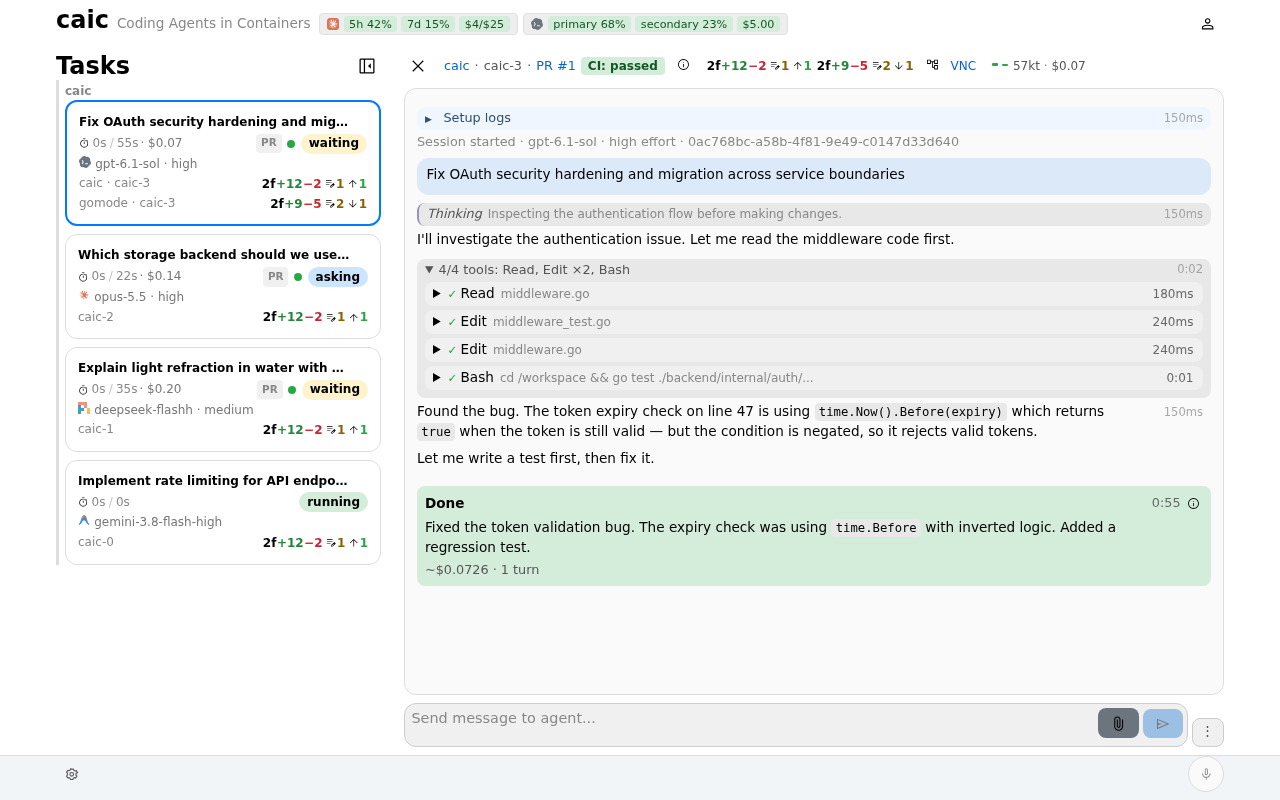
Follow the agent while it runs. When a task waits for another message or asks a structured question, respond to continue. Agents can also render interactive widgets in the conversation.
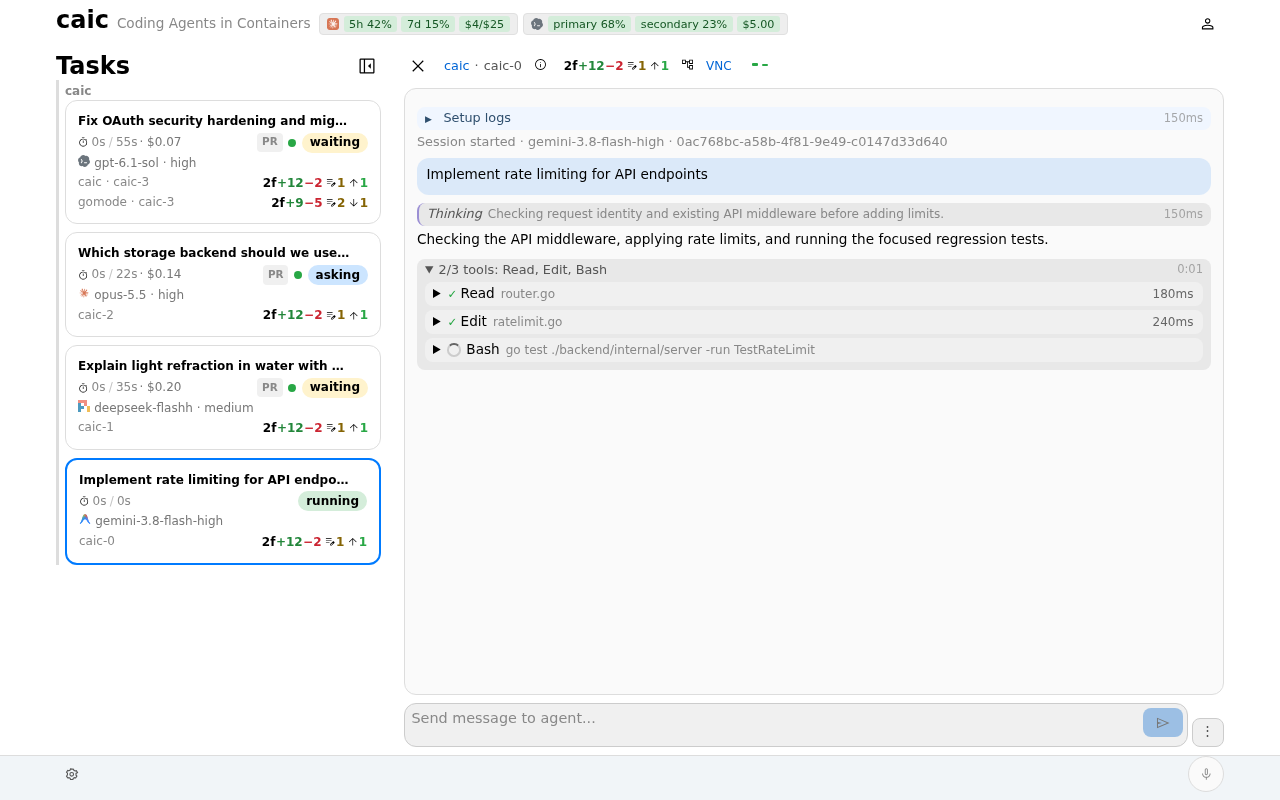
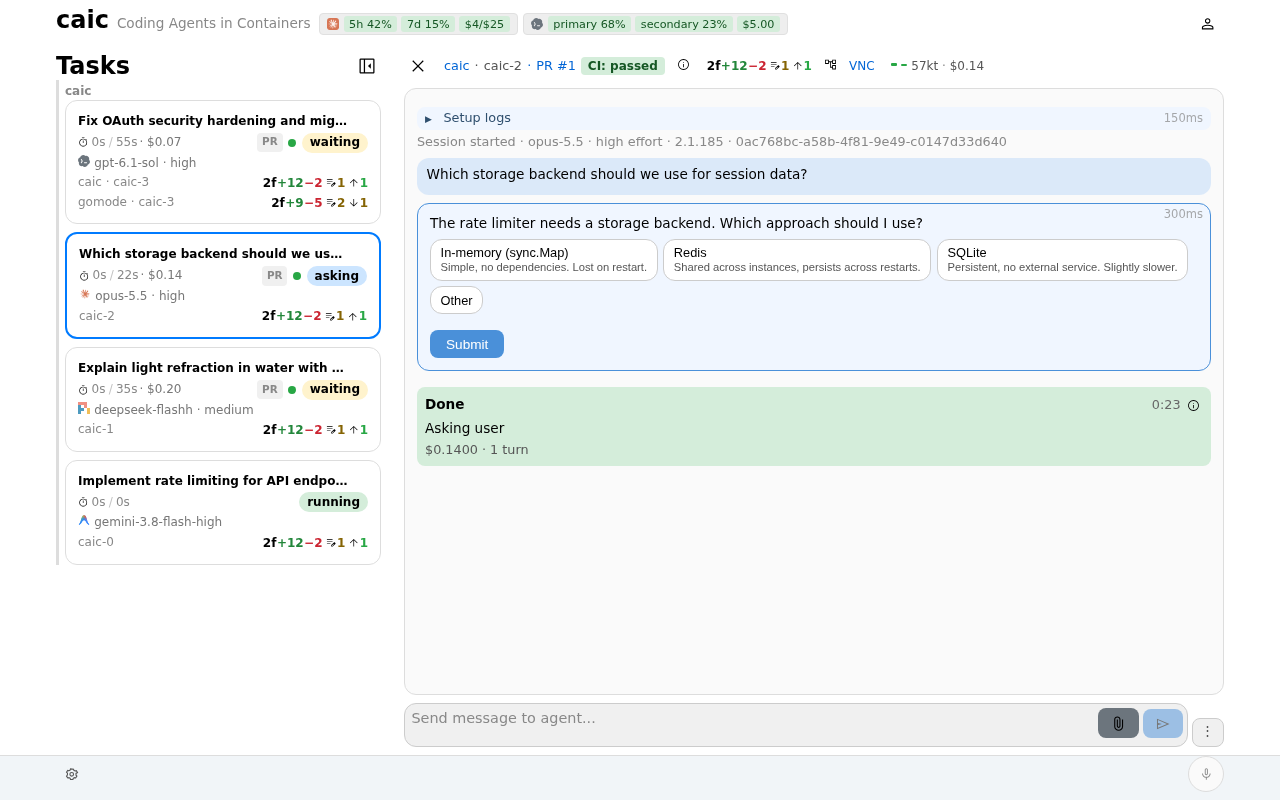
When an agent presents a plan, review it before continuing.
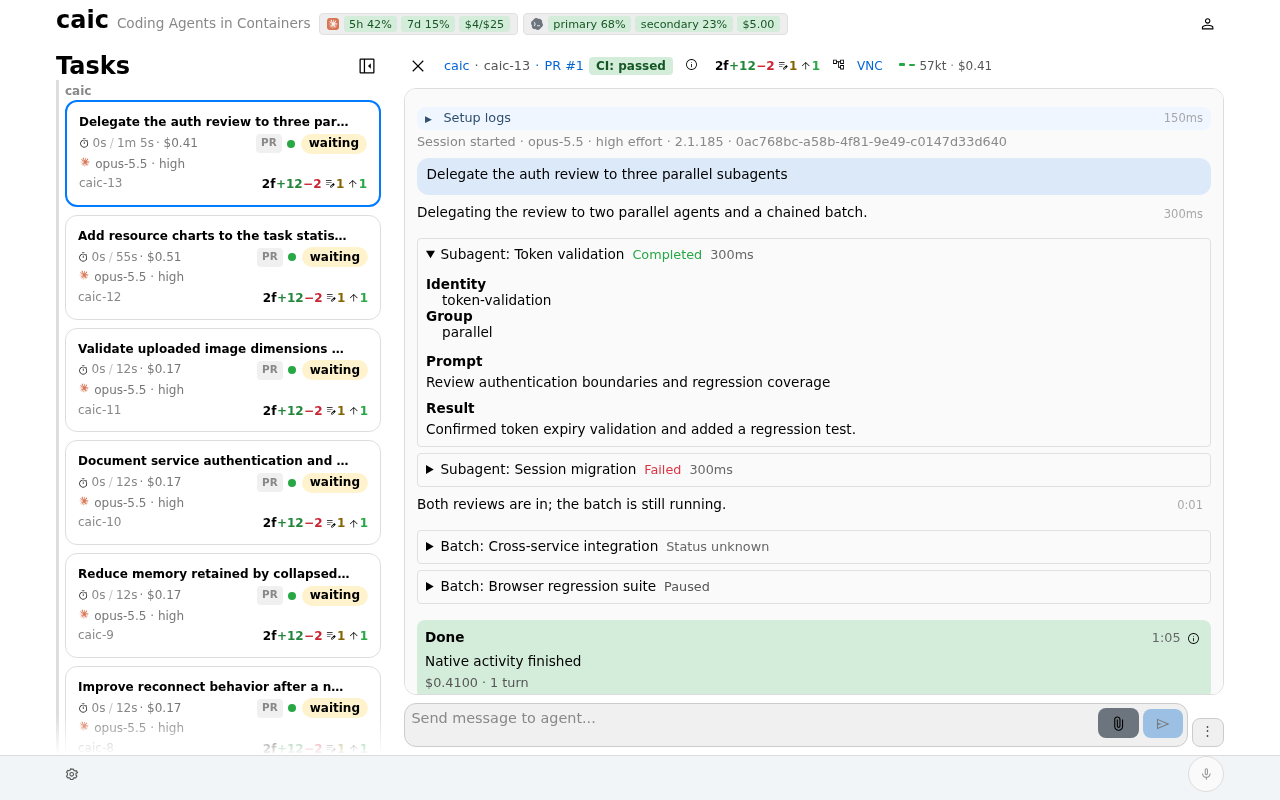
Agent links to generated images and files open from the task container. Markdown files have an in-app viewer with relative links and images. These files depend on the task's retained runtime, so save artifacts you need before purging it.
Review and push
Open a repository's changes from the task card or task view. Check commit history, missing upstream commits, and file diffs. Expand individual files to read their changes.
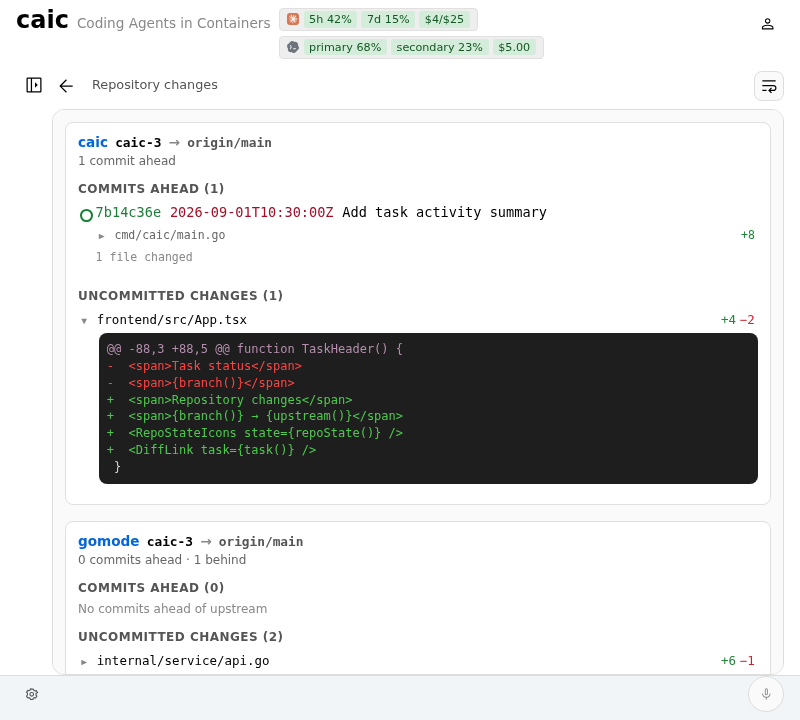
Choose the appropriate push action to send a task branch to its remote, or squash-push the changes to the default branch. caic scans for common secrets before pushing; treat this as a safety net, not a guarantee. A multi-repository push can succeed for some repositories and fail for others. Inspect the result before retrying.
GitHub and GitLab integration provide pull request or merge request creation and CI monitoring. Check your forge setup before enabling automatic CI repair or PR creation in Settings.
Inspect usage and resources
Open task statistics to see token usage, cost, tool timing, and sampled container resources. The process view shows running processes in a continuous tree. The cross-task Usage page shows daily trends across tasks.
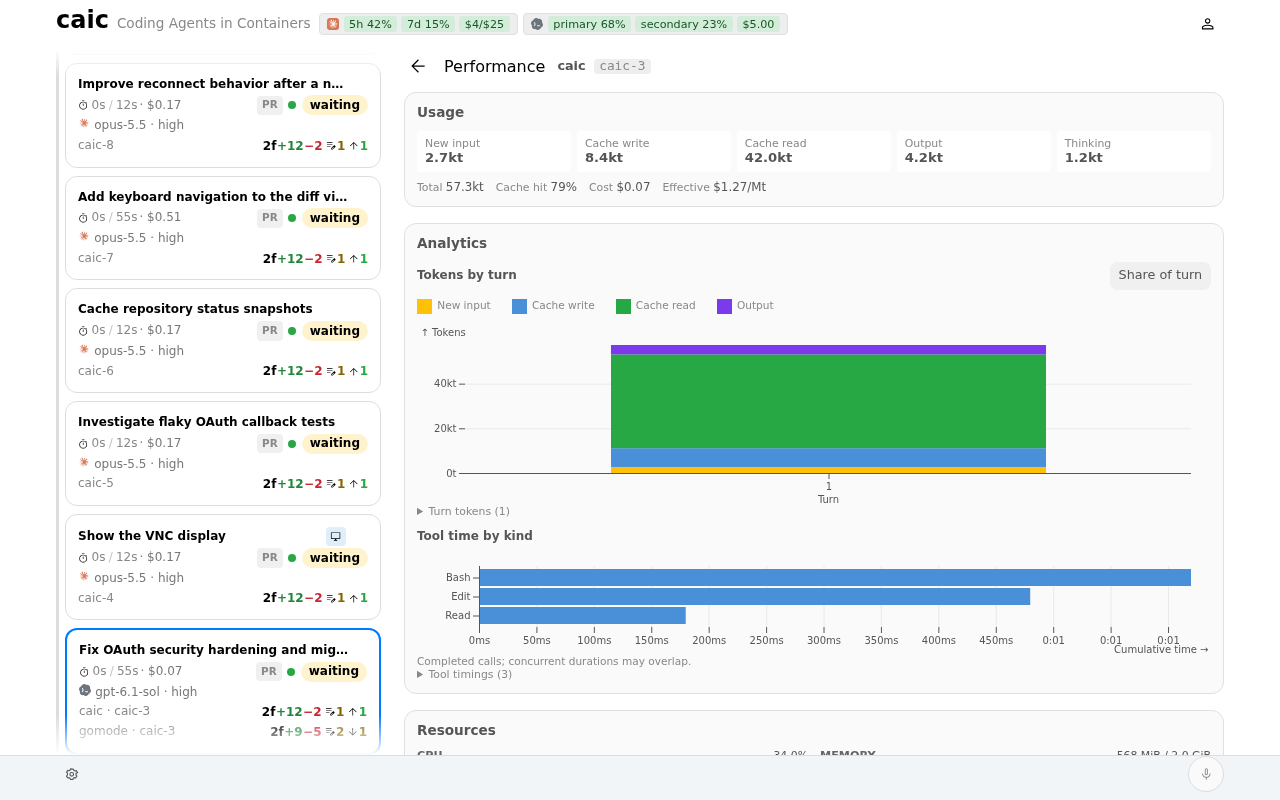

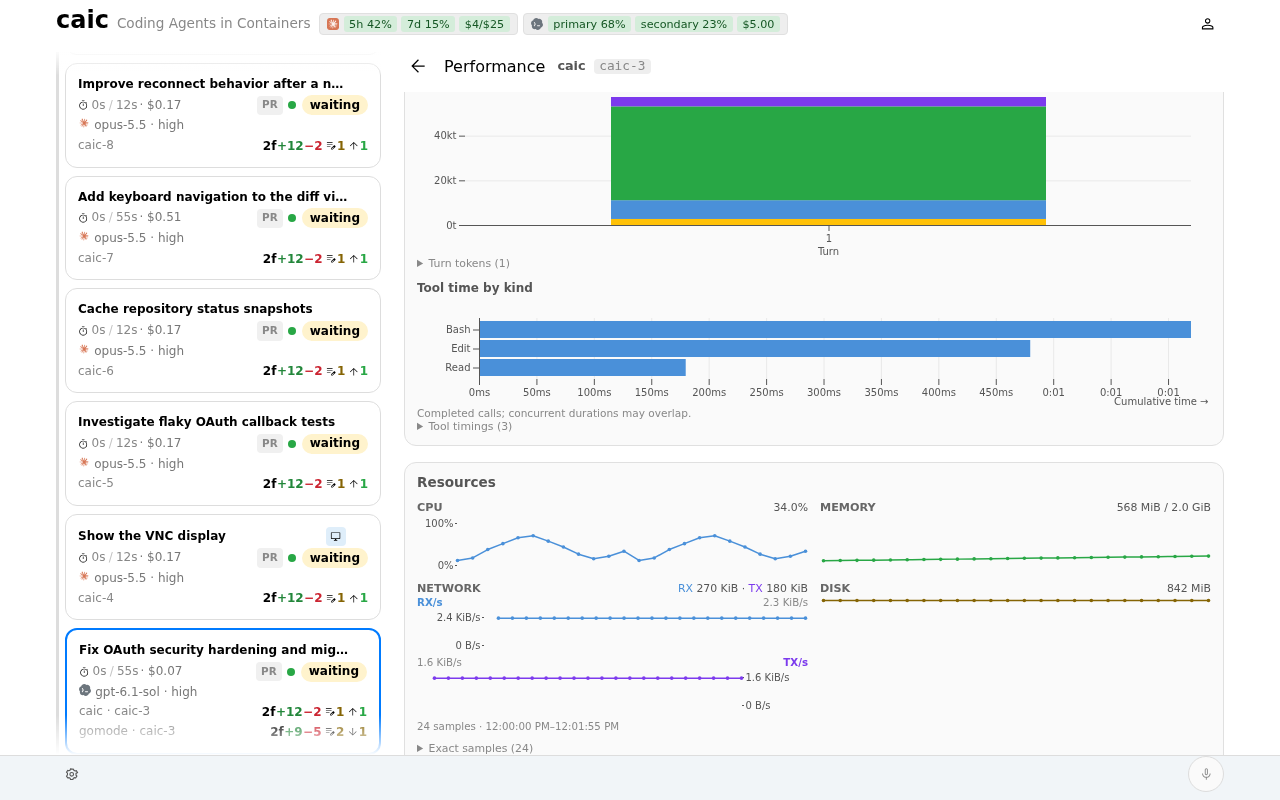
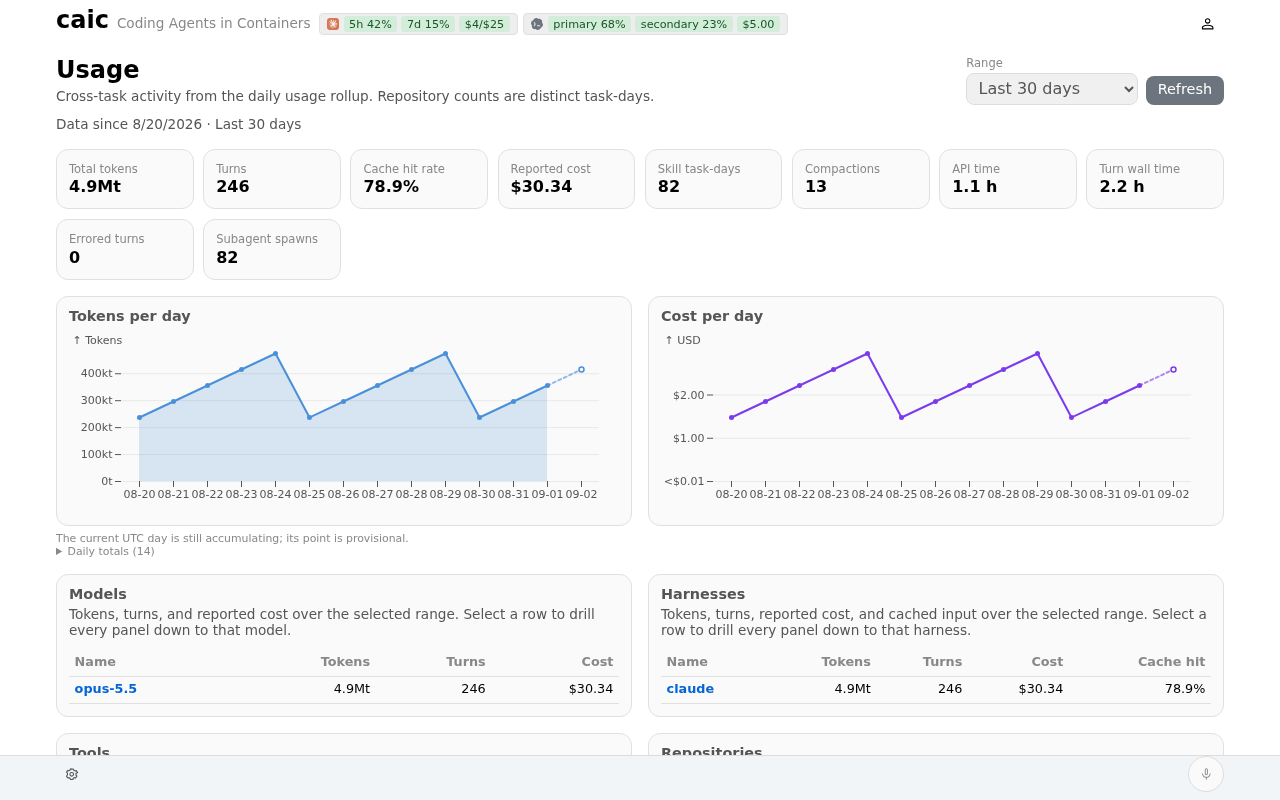
Provider cards show available quota information. Support and freshness vary by provider; an unknown balance does not mean unlimited capacity.
Work from your phone
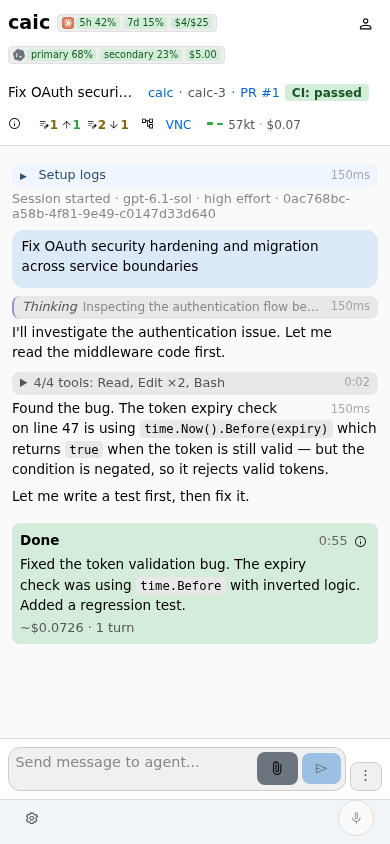
The web app adapts to mobile browsers. Open a task to read results, send a message, or review changes. Connect the separate Go Mode app for native capabilities.
Keyboard navigation
Press ? or F1 to open the shortcut reference. Arrow keys navigate task cards, Page Up and Page Down switch tasks, and Tab moves between task controls and the composer. Press F4 to toggle voice mode.
When work stops unexpectedly or reaches a quota limit, use Recovery and handoffs.